
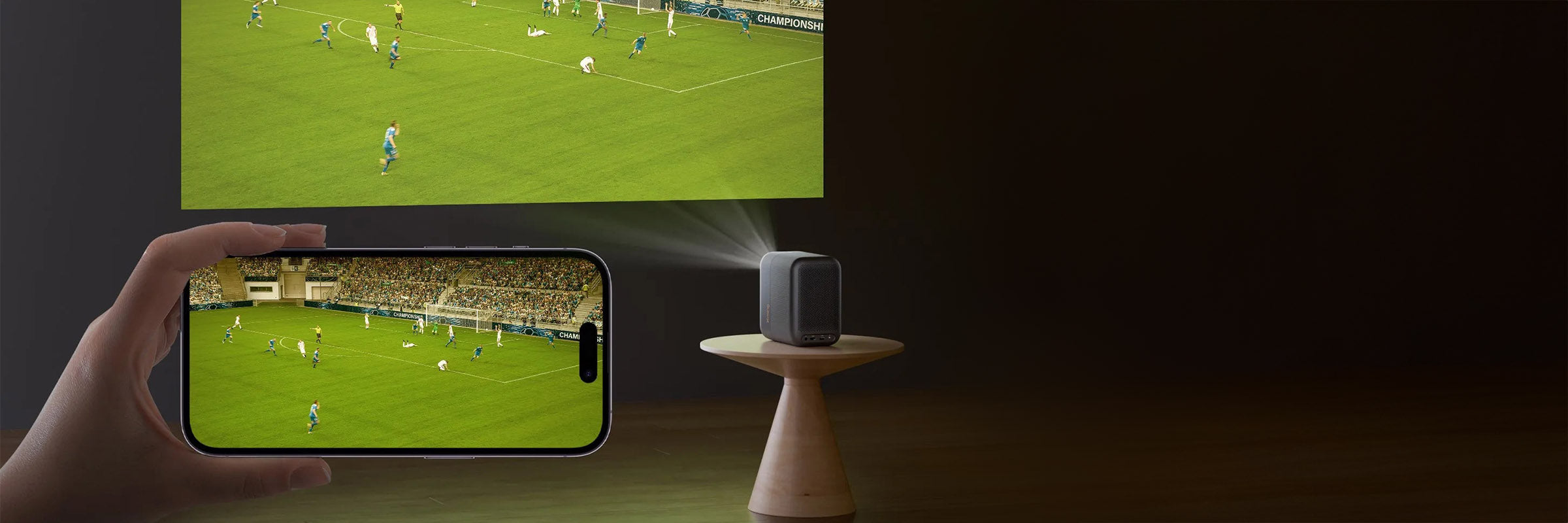
Key points in brief: The quickest way in the living room, conference room or classroom is AirPlay: either directly to an AirPlay 2-capable projector or via an Apple TV 4K as a universal adapter. If you want a stable stream over a cable, use the right HDMI adapter for your Apple device; which adapter suits which iPhone, iPad or MacBook generation is explained further down.
- How does AirPlay work with a projector?
- Why would I need an Apple TV 4K with a projector?
- What are the alternatives without an AirPlay projector?
- Which adapter suits which Apple device?
- When are manufacturer apps worthwhile instead of AirPlay?
- Why does the picture stay black with some streams?
- Which projectors in our range suit Apple users?
- Practical idea: iPhone as a live camera at events
- Frequently asked questions (FAQ)
How does AirPlay work with a projector?
Short answer: If the projector supports AirPlay 2 out of the box or an Apple TV 4K is plugged into the HDMI input, a single tap on the Screen Mirroring icon on your iPhone, iPad or Mac is all it takes. No adapter, no app login on the projector, no tangle of cables.
AirPlay works in two modes that function quite differently from a technical point of view:
- Screen mirroring (peer-to-peer): The iPhone sends its entire screen directly to the receiver – including notifications, taps and app switches. The stream runs from the iPhone.
- Streaming mode (receiver pulls): In AirPlay-capable apps (Apple TV+, Apple Music, YouTube, ARD/ZDF Mediathek, Disney+) you tap the AirPlay icon – the iPhone merely passes the stream instruction to the Apple TV / AirPlay projector, and the receiving device then establishes its own connection to the streaming server. The iPhone becomes the remote control; the actual stream runs directly between the streaming server and the receiving device, without a detour via the iPhone. Advantage: lower battery consumption, less Wi-Fi load, no sender-receiver bottleneck.
Netflix remains a well-known exception: The iOS app disabled AirPlay streaming in 2019. If you want to watch Netflix on a projector, go via an Apple TV 4K or a projector with a built-in Netflix app. Details and the status of other streaming services (Disney+, YouTube, ARD Mediathek, Sky/DAZN) can be found in the HDCP table further down.
Which projectors support AirPlay out of the box?
The platform rule of thumb: projectors with VIDAA OS (Hisense) or LG webOS generally support AirPlay out of the box. With Samsung Tizen it depends on the model. Classic home cinema projectors (Sony, JVC, Epson home cinema range) and pure professional 3LCD projectors without a smart OS do not support AirPlay – here an Apple TV 4K on HDMI is the clean solution. One exception in the professional world: Epson’s new business devices (see table below).
Straight to the selection: You already know you want AirPlay and are just looking for the right device? View all AirPlay projectors in the shop →
Home cinema & lifestyle
| Segment | Model | Platform | Brightness |
|---|---|---|---|
| Lifestyle / living room | Hisense M2 Pro | VIDAA | 1,300 ANSI lumens |
| Hisense C2-Pro | VIDAA | 2,600 ANSI lumens | |
| Hisense C3 | VIDAA | 2,500 ANSI lumens | |
| Hisense C2 Ultra | VIDAA | 3,000 ANSI lumens | |
| Lifestyle / mobile | Samsung The Freestyle | Tizen | 230 LED lumens |
| LG CineBeam PU600U Q | webOS | 300 ANSI lumens | |
| Home cinema | LG CineBeam HU710PW | webOS | 2,000 ANSI lumens |
| Laser TV (UST) | Hisense PT1 | VIDAA | 2,500 ANSI lumens |
| Hisense PX3-Pro | VIDAA | 3,000 ANSI lumens | |
| Samsung The Premiere LPU9D | Tizen | 3,450 ANSI lumens | |
| LG CineBeam HU715QW | webOS | 2,500 ANSI lumens | |
| LG HU915QE | webOS | 3,700 ANSI lumens | |
| Hisense L9Q | VIDAA | 5,000 ANSI lumens |
In summary: If you opt for VIDAA (Hisense) or LG webOS, you get AirPlay support more or less automatically. With Samsung lifestyle models running Tizen, a quick check before buying is worthwhile.
Conference room & education – all models with AirPlay + Miracast integrated out of the box
| Segment | Model | Brightness | Throw ratio (TR) |
|---|---|---|---|
| School / mobile | Epson EB-FH54 | 4,100 lumens | 1.30–2.09:1 |
| Conference room / professional installation | Epson EB-L690U | 6,500 lumens | 1.35–2.20:1 |
| Epson EB-L690SU | 6,200 lumens | 0.79–1.36:1 | |
| Epson EB-L695SU | 6,200 lumens | 0.79–1.36:1 | |
| Lecture hall / large room | Epson EB-L790U | 7,300 lumens | 1.35–2.20:1 |
| Epson EB-L790SU | 7,000 lumens | 0.79–1.36:1 | |
| Epson EB-L795SE | 7,000 lumens | 0.79–1.36:1 | |
| Classroom / auditorium | Epson EB-L890U | 8,000 lumens | 1.35–2.20:1 |
| Epson EB-L895U | 8,000 lumens | 1.35–2.20:1 | |
| Epson EB-L890E | 8,000 lumens | 1.35–2.20:1 |
TR < 1 = short throw (for small rooms with a wall distance of up to ~1.5 m), TR 1–2.5 = standard throw (conference rooms of normal depth), TR > 2.5 = long throw.
In summary: Epson’s newer business devices are the rare exception in the professional projector segment: AirPlay runs out of the box in the projector OS, saving you the third-party receiver in conference rooms where MacBooks are standard issue (Kindermann, ClickShare, EZCast Pro). For more complex multi-platform setups with Windows, Mac and Android sources in parallel, our projector specialists will advise you on the right casting hardware.
How can I add AirPlay?
If you use a projector without built-in AirPlay (a classic home cinema model, an existing professional 3LCD projector, or simply an older device), you can add AirPlay afterwards – not, however, with an additional hardware module on the projector itself, but with a device connected upstream to the HDMI input:
- Apple TV 4K as the universal solution: provides AirPlay, all streaming apps directly, the best picture chain and the best sound chain. Our recommendation for premium home cinema and MacBook conference rooms. We do not stock the device ourselves; you can buy it directly from Apple or from an electronics retailer.
- EZCast Pro Dongle II as a multi-format receiver: AirPlay, Miracast and Google Cast in one HDMI stick. Useful when the setup includes not only Apple devices but also Windows/Android users. A casting receiver, not a streaming stick (no app logins on the dongle itself).
- Professional presentation systems for conference rooms with high demands on security, multi-participant casting and enterprise integration: Kindermann Klick & Show and Barco ClickShare. Both systems support AirPlay, Miracast, Google Cast and Chromecast in parallel, with central administration and HDMI handover to the projector. The first choice when several employees or guests with different devices present in the same room.
What doesn’t work: AirPlay via a mere Wi-Fi module on the projector (e.g. ELPAP11 or similar wireless LAN adapters). These modules connect the projector to the Wi-Fi network but do not change the OS – AirPlay support depends on the projector firmware, not on the wireless module. In practice, such adapters usually only enable Miracast or a manufacturer-specific casting method that requires an app (Epson iProjection, BenQ InstaShow, ViewSonic vCast etc.), which on iPhone/iPad requires a separate app and sometimes even a separate account – AirPlay is not included. If the model’s OS does not implement AirPlay out of the box, no adapter can get around that.
Note on our range: We are happy to clarify before you buy which model supports which AirPlay version (1 vs. 2) with which firmware version. The internal mirroring feature depends on the firmware.
A good first check if your AirPlay stream stutters is the Wi-Fi band: 5 GHz Wi-Fi runs considerably more stably in most setups than the congested 2.4 GHz band. When a customer calls about stuttering – whether from the living room or a conference room – switching to the 5 GHz network often solves the problem before the projector itself comes under suspicion.
Why would I need an Apple TV 4K with a projector?
Short answer: The Apple TV 4K (current generation) connects to the projector’s HDMI input and makes any projector AirPlay-capable. Plus the full choice of apps directly on the projector: Netflix, Disney+, Apple TV+, broadcaster catch-up apps – all available directly.
For Apple households, the Apple TV 4K is a more universal solution than a “smart” projector with Android TV: the platform integration with iPhone, iCloud library, Photos, HomeKit and the Siri Remote is more direct and does not need a separate login routine for each app. For premium home cinema setups (Sony, JVC, Epson home cinema range), the recommendation in our advice is almost always: Apple TV 4K on HDMI 2.0 instead of casting dongles. Casting stick solutions do not meet the quality expectations of demanding buyers – bitrate, Dolby Vision and Atmos passthrough work more reliably on the Apple TV.
An example from our advice: a customer with a Sony VPL-XW5000ES and a 4K HDR setup. He originally wanted “just a casting stick”, but via the Apple TV 4K he got the full iCloud Photos slideshow at 120 inches – the leap in functionality was worth the extra cost of around €170 to €200.
Note: we do not stock the Apple TV 4K in our shop range; you can buy it directly from Apple or from an electronics retailer. We will be happy to tell you which Apple TV variant suits your projector setup (HDMI slot, sound chain, resolution match) – we treat the Apple TV as part of your projector world, even if the device itself doesn’t come off our shelves.
What are the alternatives without an AirPlay projector?
Short answer: AirPlay is Apple-only. If you need to reach projectors without AirPlay support from within the Apple universe, there are two workarounds – neither of which is the first choice for home cinema quality.
Miracast (Windows, Android) is not supported on iPhones and iPads – not an option in an Apple setup. For Mac users there are third-party tools (AirParrot, Reflector) that turn a Miracast receiver into an AirPlay source – more of a DIY solution than a setup you would explain to guests.
Google Cast (Chromecast) works with selected iOS apps (Netflix, YouTube, Spotify), but does not mirror the full iPhone screen. Fine for watching catch-up TV, but not enough for presentations or games.
EZCast Pro Dongle II is an HDMI casting receiver on the projector – it receives AirPlay, Miracast and Google Cast. A pragmatic solution for occasional wireless use in the office or clubhouse. For an Apple home cinema setup with a demanding audio/video chain, we recommend the Apple TV 4K instead: app quality and the HDMI audio pipeline are more reliable.
→ EZCast Pro Dongle II in the shop
Which adapter suits which Apple device?
Short answer: If you want to show films in full resolution or do not have reliable Wi-Fi (garden, clubhouse, conference room with an existing projector), use the right cable. For modern Apple devices this is always USB-C → HDMI, for iPhones up to model 14 still the Lightning Digital AV Adapter, and for old projectors with VGA only the VGA adapter with an audio workaround.
The general advantage of a cable connection over AirPlay: the entire screen is mirrored 1:1 – including apps without AirPlay permission (e.g. some DRM-protected streaming services that block AirPlay). In addition, there is no Wi-Fi latency and no bitrate compression.
USB-C → HDMI (current iPhones, newer iPads, MacBooks from 2016)
Since the iPhone 15 (end of 2023) and the M-chip generation of iPads, Apple has used USB-C as its universal standard port. MacBooks have been using USB-C for considerably longer – since the 2016 MacBook Pro, USB-C (in the form of Thunderbolt 3 or Thunderbolt 4) has been the primary video output. A USB-C to HDMI adapter works the same way for all of these devices.
Important: not every USB-C hub supports DisplayPort Alt Mode – no-name hubs can give you a black screen. Apple itself sells the “USB-C Digital AV Multiport Adapter” with guaranteed 4K60 output, which also passes DRM streams through cleanly. With third-party adapters, look for the keyword “4K HDMI Alt Mode”.
In practice, both routes are equally good: AirPlay is the more convenient option in everyday use, because there is no cable in the room and you can pick up the iPhone freely; an HDMI cable, on the other hand, guarantees a stable connection without depending on Wi-Fi and reliably outputs 4K content in full resolution. Which route suits you better depends on the specific setup – a living room with a Wi-Fi mesh, a conference room with a fixed installation or a spontaneous garden screening each have different requirements.
Lightning devices (iPhones up to iPhone 14, older iPads)
Before the iPhone 15 and before the switch to USB-C in the iPad family, Lightning was the standard port. If you still use an iPhone up to model 14 or an iPad with a Lightning port, you need the Apple Lightning Digital AV Adapter (MD826ZM/A). It delivers up to 1080p (technically, the HDMI output is upscaled from around 900p; Apple scales internally). MFi-licensed third-party adapters work, but with DRM streams (Disney+, Sky/DAZN, some sports apps) there are cases where the picture stays black; the original Apple adapter is the safe choice here.
For even older Apple devices with a 30-pin connector (iPhone 4/4s, iPad 2/3, iPod touch 4th gen.) there is the 30-pin Digital AV Adapter – it technically still exists but is practically irrelevant for new buyers. If you still use an iPad 2 as a family media library: the adapter still works with the HDMI input of current projectors.
MacBook generations – from Mini DisplayPort to USB-C
MacBooks have seen several generations of ports over the last 15 years. This table summarises which adapter suits which model:
| MacBook generation | Port | Suitable adapter | Max. resolution |
|---|---|---|---|
| MacBook before 2016 | Mini DisplayPort or Thunderbolt 2 | DP→HDMI or TB2→HDMI | 1080p (TB2 up to 4K30) |
| MacBook Pro 2016–2019 | Thunderbolt 3 (USB-C) | USB-C → HDMI | 4K60 |
| MacBook M series (from 2020) | USB-C / Thunderbolt 4 | USB-C → HDMI 2.0/2.1 | 4K60 / 4K120 |
| MacBook Pro 14"/16" (from 2021) | HDMI 2.1 directly on the device | HDMI cable without adapter | 4K120 |
The bottom line: Current MacBook Pro 14"/16" models have HDMI 2.1 built into the housing and connect to the projector without an adapter; all other generations need the matching USB-C/Thunderbolt adapter. If you place the projector further away from the MacBook or iPhone, you also need a suitable extension cable behind the adapter – you will find the right selection in the HDMI cable category.
VGA adapters for older projectors in fixed installations
Schools, conference rooms or clubhouses often still have existing projectors with only a VGA input (Epson EB series 2010–2014, older generations of the BenQ MX series). For these there is the Apple Lightning to VGA Adapter or USB-C to VGA. You should be aware of three limitations:
- Resolution: A maximum of 1080p, often scaled to the VGA projector’s native resolution (1024×768 or 1280×800). 4K is not possible.
- Audio: VGA does not carry audio. Workaround: a jack cable from the headphone output of the iPhone/iPad to the projector’s audio input or directly to an external sound system.
- HDCP: Some streaming services refuse to play via analogue outputs – Netflix films then only play sound, with no picture.
If you are tied to a fixed installation with VGA and regularly want to show high-resolution content: upgrading to a projector with HDMI 2.0 + Wi-Fi often pays for itself after just a few events. → Current home cinema and business projectors
When are manufacturer apps worthwhile instead of AirPlay?
Short answer: Many projector manufacturers offer their own iOS apps that work similarly to AirPlay – on the same Wi-Fi network, without an Apple TV in between. Advantage: no additional device. Disadvantage: usually limited to the respective manufacturer’s ecosystem.
Epson iProjection connects an iPhone or iPad to compatible Epson projectors (EB business range, EH-TW home cinema range with Wi-Fi module). The app mirrors photos, documents and PDFs in Full HD; videos are reduced to 30 fps depending on the content. Good for presentations, less so for film nights.
BenQ Smart Control / BenQ Suggest works in a similar way for BenQ models with Android TV (X series, V series).
XGIMI Play / Magic Companion and Hisense ConnectLife round off the ecosystem on the respective smart platform.
Experience shows that these apps are the clean solution for presentation content (PDFs, photos, spreadsheets); for streaming playback, AirPlay via an Apple TV or an AirPlay 2-capable projector remains more convenient.
Why does the picture stay black with some streams?
Short answer: HDCP (High-bandwidth Digital Content Protection) is the copy protection of the film and streaming industry. Apple implements it like all other providers, but did not invent it. If the stream stays black even though the setup should work, HDCP is the most likely reason. This is seen frequently with live sport and pay TV content – and especially around major football events (World Cup, Euros, Bundesliga) it is a standard pain point.
AirPlay behaviour by streaming service
AirPlay itself supports HDCP transmission – Apple’s own content (Apple TV+, iTunes library, Apple Music) works smoothly. With third-party providers, the respective app decides whether it allows AirPlay:
| Service | AirPlay from iPhone/iPad | Cause / workaround |
|---|---|---|
| Apple TV+, Apple Music, iTunes | ✅ reliable | Apple’s own ecosystem, full HDCP |
| Disney+ | ⚠ usually works | According to the Disney Help Center, the Disney+ With Ads plan currently has technical limitations with AirPlay |
| ZDF/3sat/ARTE Mediathek, Magenta Sport, RTL+ | ✅ works | public broadcasters / free licences |
| ARD Mediathek | ⚠ app bug since iOS update | only the ARD app is affected; workaround: open the ARD stream in Safari and use AirPlay from there |
| YouTube | ⚠ currently unstable | iOS 26 bug: “Something went wrong” error when activating AirPlay. Status changes with app updates |
| Netflix | ❌ blocked since 2019 | Disabled in the app; workaround: Apple TV 4K with the built-in Netflix app or a projector with a Netflix-capable smart OS |
| Sky Go / WOW (Bundesliga, Champions League) | ⚠ partly blocked | depending on content; workaround: Sky Q receiver on the projector’s HDMI |
| DAZN | ⚠ live sport partly restricted | Bundesliga matches often black or audio only; workaround: built-in DAZN app on the projector’s smart OS or Apple TV |
In summary: Apple’s own content and most public broadcaster catch-up services work reliably. With third-party apps such as Disney+, YouTube or the ARD Mediathek, AirPlay support changes with app updates: the AirPlay standard itself doesn’t change, but the app providers decide with each update whether they allow AirPlay streaming from their app. If you depend on reliability (live sport from Sky or DAZN, Netflix that works permanently), it is better to plan in an Apple TV 4K as a companion. The app then runs on the Apple TV, app update restrictions no longer apply, and the HDCP limitation disappears.
World Cup 2026 and other live sports events
For the 2026 FIFA World Cup, the rights situation in Germany is mixed: some matches on ARD/ZDF (as a rule no problem via AirPlay), most on MagentaTV (own app, AirPlay usually possible), and, depending on broadcasting rights, individual matches on Sky or DAZN (HDCP-critical). Practical tip: If the match really matters, we recommend an HDMI cable from the MacBook or an Apple TV 4K directly to the projector. Wi-Fi usually works well in a living room setup, but you know Murphy’s Law: right before kick-off, the router discovers it needs an update, the neighbour downloads their latest episode, or the app providers roll out an update that restricts AirPlay that very week. If you have invited guests to a garden party or public viewing, it is better to plan conservatively: cable as plan A, AirPlay as a convenient plan B, and an Apple TV with the broadcaster’s app as plan C.
→ Suitable model recommendations for public viewing: World Cup 2026 projector guide
Which projectors in our range suit Apple users?
Apple users are usually not primarily looking for “the AirPlay projector” but for “a projector that works well with my iPhone/Mac”. Three setups that come up again and again in our advice:
- Lifestyle living room setup with an AirPlay platform: A projector with a smart OS that integrates AirPlay out of the box. From our current range we recommend models such as the Hisense M2 Pro (4K UHD, Dolby Vision, compact) or the Hisense C2-Pro (tri-laser, suitable for the living room). Both come with VIDAA including AirPlay support.
- Premium home cinema with Apple TV 4K on HDMI: The projector is there to deliver picture and colour depth, while the smart OS is outsourced. The Epson EH-LS9000B, Epson EH-LS12000B or Sony/JVC home cinema models work best here: uncompromising picture, with the Apple TV 4K as the HDMI source.
- Portable garden/travel projector for an Apple family: Battery-powered lifestyle projectors such as the XGIMI Halo+ GTV or Nebula Mars 3 Air run Google TV (Google Cast instead of AirPlay). For Apple users, an Apple TV 4K on the HDMI input is the clean companion solution; alternatively, a USB-C/Lightning cable directly to the projector.
We are happy to clarify before you buy which models in our range support AirPlay 2 out of the box – the specifications change with firmware updates. A call or email to our projector specialists is all it takes.
Related shop categories:
- Smart TV projectors: lifestyle models with integrated streaming
- Wi-Fi projectors: all projectors with integrated Wi-Fi
- 4K projectors: UHD home cinema
Practical idea: iPhone as a live camera at events
A hairdressing trade event with over 150 spectators: the craft details at the back of the model’s head were invisible from the back rows, and professional camera equipment was not in the budget. The solution was an iPhone in the hand of the presenter or an assistant, streaming via AirPlay through an Apple TV to the stage projector. Suddenly the back rows could see just as clearly as the front ones. The same works with an iPad; the iPhone was simply handier for moving freely around the stage.
With today’s range, a projector with built-in AirPlay such as the Epson EB-L690U is enough, and the iPhone streams directly, without an Apple TV in between. A tip on the UI overlay: the standard Camera app also shows its controls on the screen. Specialised “clean camera” apps from the App Store hide the UI (we won’t make a specific recommendation, because the App Store landscape changes quickly in this niche).
Other use cases: workshops where hands need to be visible (cookery courses, craft training), schools and universities (experiments, microscope images, demonstrations that not every student can see up close), sport in clubhouses, church services for the back rows, family celebrations with stage performances. No substitute for a professional event camera, but when the budget is lacking or the setup is spontaneous, it is surprisingly practical.

Personal advice on your Apple setup
A good Apple setup needs more than just the right adapter: projector, Wi-Fi band, streaming source and sound chain must all work together. Our projector specialists will advise you personally on the best combination of iPhone/iPad/Mac, Apple TV 4K and a suitable projector – by phone or by email.
Frequently asked questions (FAQ)
How do I connect my iPad to the projector without a cable?
There are two ways: either your projector supports AirPlay 2 out of the box (VIDAA platform from Hisense, LG webOS, some Samsung Tizen models, Epson’s new business devices). In that case, open Control Centre on the iPad, tap “Screen Mirroring” and select the projector. Or you connect an Apple TV 4K to the projector’s HDMI input; this makes any projector AirPlay-capable.
Which projectors support AirPlay out of the box?
Platform rule of thumb: VIDAA OS (Hisense) and LG webOS usually support AirPlay out of the box; with Samsung Tizen it depends on the model. In the conference room and education sector, Epson’s newer business devices are the rare exception. Premium home cinema projectors from Sony, JVC or the Epson home cinema range usually have no AirPlay; here the Apple TV 4K is the clean solution. The complete list from our range with specific models can be found above in the section “How does AirPlay work with a projector?”.
Can I play Netflix from my iPhone to the projector via AirPlay?
Yes and no – not directly via AirPlay, but via a workaround. In 2019 Netflix blocked AirPlay streaming from its iOS app; if you tap play in the Netflix iPhone app while mirroring to an AirPlay receiver, you will see a black screen. Even so, the solution looks the same to you: you open Netflix on the iPhone, tap the “cast to device” icon and the film starts on the projector. In the background, however, it is not the iPhone that streams but the Netflix app on the projector (or Apple TV), directly from the internet – the iPhone becomes the remote control. Three setups that work:
- Projector with a built-in Netflix app: Hisense PX3-Pro, Samsung The Premiere, LG CineBeam with its own smart OS. You start the film on the iPhone and the projector takes over playback.
- Apple TV 4K on the HDMI input: Works with any projector. Netflix runs on the Apple TV, and the iPhone controls it via Netflix’s own cast function or simply as an Apple TV remote.
- Cable connection MacBook / iPhone / iPad → HDMI: For Netflix, the safe choice is the original Apple adapter – its HDCP handshake has been tested for years and works reliably with every pay TV provider. Adapters without an HDCP chip, on the other hand, stay black. The resolution limit depends on the generation: Lightning iPhones (up to iPhone 14) and Lightning iPads output a maximum of 1080p via the Lightning Digital AV Adapter; USB-C iPads (Pro, Air) and MacBooks via USB-C / Thunderbolt manage 4K, and the iPad Pro with M chip even up to 6K. The iPhone 15/16 with USB-C manages 4K/60 Hz even on the standard models, because video output runs via the USB-C port’s DisplayPort Alternate Mode and is not held back by the slower USB 2 data rate.
Disney+, Apple TV+, Apple Music, ARD/ZDF Mediathek and YouTube continue to work directly via AirPlay from the iPhone.
Do I need an Apple TV if my projector already supports AirPlay?
Not necessarily. If the projector supports AirPlay 2 out of the box and you mainly stream from your iPhone/iPad, that is enough. An Apple TV 4K is also worthwhile if you want Netflix, Disney+ and Apple TV+ in full app quality directly on the projector without using the iPhone as a “bridge” – and for family households the Siri Remote is a real gain in convenience.
What is the difference between AirPlay and Miracast?
AirPlay is the Apple standard (iPhone, iPad, Mac) and transmits picture + audio + stream handover in its own codec. Miracast is the Wi-Fi standard supported by Windows PCs and Android devices; iPhones and iPads do not support Miracast. If you have a Miracast-only projector (e.g. older Epson business models), you need an additional receiver for AirPlay, such as the EZCast Pro Dongle II or an Apple TV 4K.
Which adapter suits my iPhone?
iPhones with a Lightning port (all before the iPhone 15): Apple Lightning Digital AV Adapter (HDMI). iPhones from the iPhone 15 onwards with USB-C: USB-C to HDMI adapter – the Apple USB-C Digital AV Multiport Adapter is the safe choice. For projectors with only a VGA input: Lightning or USB-C to VGA adapter plus a separate jack cable for the sound – and note that DRM streams (pay TV, sports apps) stay black over analogue VGA because of HDCP protection.
To be honest: Apple’s original adapters are not cheap (around €50–80) and are not the most durable category of hardware either – at the cable joint they eventually wear out. In return, they work straight away with every stream and every piece of DRM content. For everyday use – presentations, photos, local videos from the iPhone library, family films – the celexon USB-C to HDMI multiport adapter is the more affordable alternative from our range. It also has a USB-A port for peripherals and a USB-C port with Power Delivery, which charges the iPhone, iPad or MacBook during playback – the more practical all-rounder in everyday advice. If, on the other hand, you mainly want to send Netflix, Disney+, Sky or sports streams directly from the iPhone to the projector, you are on the safe side with the original Apple adapter: the HDCP handshake on Apple’s original hardware has been tested for years, and every pay TV provider works reliably with it.
Does AirPlay work without internet?
Yes. AirPlay runs on the local Wi-Fi network – the devices just need to be on the same network. You only need an active internet connection if the content itself comes from online sources (streaming services, catch-up services). Local films from the iPhone library also work completely offline.
Why does my AirPlay stream stutter even though my Wi-Fi is fast?
Stuttering in an AirPlay stream rarely has a single cause – Wi-Fi bandwidth is just one of several factors. In our experience, the following points most often combine before the picture stutters: the 2.4 GHz band instead of 5 GHz (in the 2.4 GHz band every microwave and every Bluetooth speaker causes interference; remedy: set up both bands with different SSIDs in the router and deliberately connect the iPhone/iPad to the 5 GHz network), projector and Apple TV / iPhone on different access points in a mesh (test directly on the same AP), congested channels in densely populated residential areas (change channel via the router app), weak reception at the projector location behind reinforced concrete or a metal housing (run a LAN cable or Powerline to the projector), parallel downloads on the same network (backup software, software updates, other streams in the household), and older iPhone/iPad generations with a Wi-Fi 5 chip on a Wi-Fi 6/Wi-Fi 7 router (mixed operation slows down the overall speed). If it still stutters after moving to 5 GHz, it is worth checking these points systematically – often it is a combination, not a single fault.
External source: Apple Support – Stream TV, films and live content with AirPlay (original documentation on AirPlay requirements and codecs).
Matching product categories in the shop:
Further guides:
- World Cup 2026 projector guide – public viewing in the garden and living room
- Projector buying guide using the BEAM method – overview of all guides
